← All work

Case study · B2B GPS tracking · Web and mobile · 14 weeks

The system needed coordinates. People thought in places.

PEEQ is a GPS tracking platform for business teams: see every device on a map, set location alerts and replay where things went. I designed how teams create geofences and manage their devices, for operators who are not mapping experts.

My role
UI/UX designer
I designed
Geofence creationDevice managementAlerts
Users
Business teams, typically under 20 devices
Timeline · Platform
14 weeksWeb and mobile
2 → 0coordinates typed to create a geofence
≈ 31%less time to place a geofence, model estimate
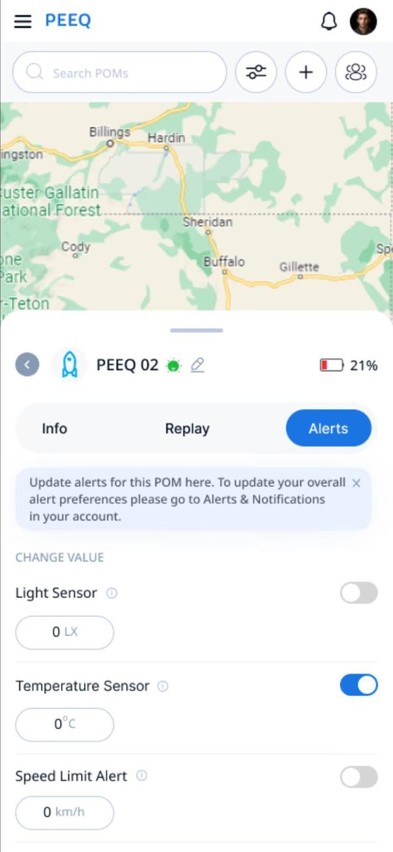
9alert types per device, so up to 180 settings at 20 devices
4signals on every device row: type, status, battery, area

01 · Overview

A tracking tool for teams, not for GIS experts.

The product

PEEQ tracks devices (called POMs) in real time. Teams see them on a map, read sensor data like temperature and speed, set alerts, and replay movement history.

The users

Mostly businesses. A typical account managed fewer than 20 devices, run by an operations person who knows the places that matter but not their coordinates.

My part

I designed geofence creation, device management with groups and status, device details and alert settings, on web and mobile.

02 · Problem

Two gaps, one root cause.

Both problems came from the same place: the interface followed how the system stores data, not how people think about their work.

Gap 1, geofences. Alerts depend on exact boundaries, so the backend needs a precise latitude and longitude. Operators think in places: “the school and the streets around it.” A form that asks for coordinates makes them leave PEEQ, look the place up elsewhere, and copy numbers back.

Gap 2, devices. Devices were shown as a flat list. Each row carries a name, a status, a battery level and an address, and with similar rows people lost track of which device was which.

What the system needs
lat  41.878113
lng  -87.629799
radius 5 km
the gap
How the operator thinks
“Tell me when the van leaves the school area.”

03 · Research

Constraints first, then people.

Stakeholder sessionswith the PEEQ team, to map backend, accuracy and business constraints
Observation1 to 3 usability observation sessions of people managing devices
Screen audita heuristic walkthrough of the designed flows, scored by severity

Backend constraints

  • Needs an exact latitude and longitude
  • GPS accuracy varies between devices
  • Alerts depend on precise boundaries

User constraints

  • People think in physical areas, not numbers
  • Fear of a wrong boundary lowers confidence

Product constraints

  • Fewer clicks, faster setup
  • Must work on web and mobile

In observation, people spent unnecessary time searching for specific devices and struggled to read device status at a glance. With a small number of sessions, I treat these as strong signals to design around, not as measured rates.

InsightEvidenceDesign rule
People work visually, not technicallyStakeholder sessions; places named, never coordinatesSet geofences by place. Address or map in, coordinates computed behind the scenes
Confidence comes from seeing itFear of wrong boundaries in high stakes alertsShow the boundary before saving. The circle appears on the map as you type
Fewer steps feel saferProduct goal; alerts trigger real responsesOne panel, smart defaults. Advanced settings stay out of the way
Flat lists lose orientationObserved searching for devicesGroup by context. School, home, route: groups people define
Recognition beats recallObserved trouble reading statusStatus on every row. Online state, battery and location without opening the device

04 · By the numbers

Two analyses I could run without analytics.

PEEQ had no usage analytics for these flows during the project. So I used two methods that work from the design itself: a Keystroke Level Model estimate of task time, and a count of the configuration load the alert system creates.

Time to place one geofence, estimated

KLM model · seconds · not measured
Coordinate form (baseline)
21.1 s
Address + map preview
14.6 s

The baseline is a coordinate only form, the direct translation of the backend requirement. Steps shared by both flows (name, devices, shape, save) are left out. The bigger win is not the 6.5 seconds: it removes two app switches and a copy and paste of numbers that can silently be wrong.

See the KLM operators and assumptions
StepCoordinate formAddress + map
Decide whereM 1.35M 1.35
Find the placeswitch to a map tab, re-orient, type 15 chars, wait: P BB H M K×15 K R = 8.53click field, type 15 chars, wait: P BB H K×15 R = 6.90
Get coordinatesright click, copy: H P BB P BB = 3.00pick suggestion: H P BB = 1.70
Bring them backswitch tab, click field, paste: P BB P BB H KK = 3.56not needed = 0
Check itM 1.35 (no map)M 1.35 (sees the circle)
Set radiusP BB H M K = 3.33P BB H M K = 3.33
Total21.1 s14.6 s

Operator times from Card, Moran and Newell: K 0.28 s per keystroke, P 1.1 s to point, BB 0.2 s click, H 0.4 s hand to keyboard or mouse, M 1.35 s mental preparation, R 1 s system response. A model of an expert user without errors; real users will be slower, and errors in pasted coordinates are not counted.

1 device9
alert settings
10 devices90
alert settings
20 devices180
alert settings

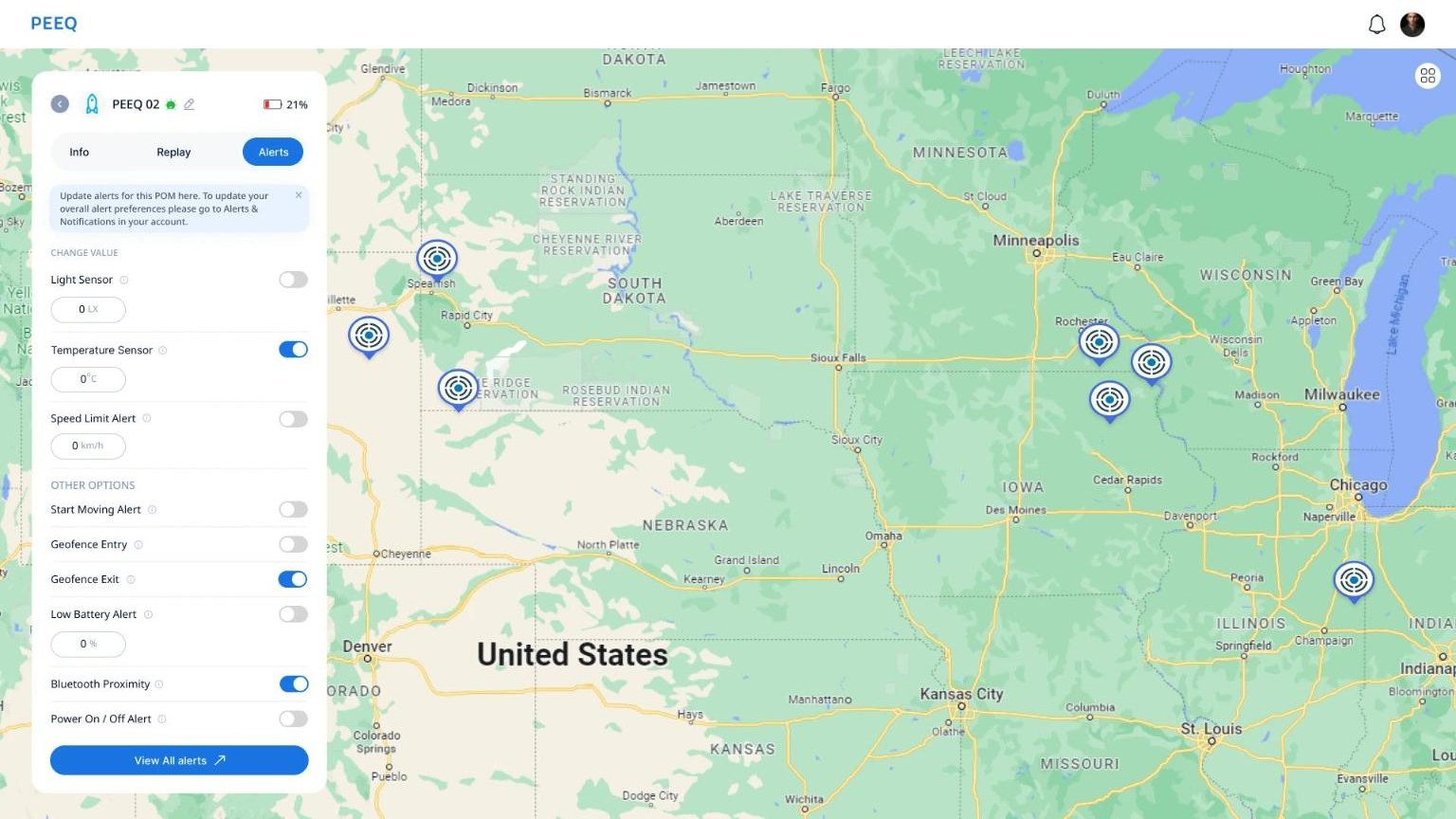
Each device has 9 alert types: light, temperature, speed, start moving, geofence entry and exit, low battery, Bluetooth proximity and power. Set one device at a time, a 20 device account faces 180 settings. That number is why groups and “apply to all” matter, and why the remaining per device setup is the first thing I would fix.

05 · Geofences

Type a place, see the boundary.

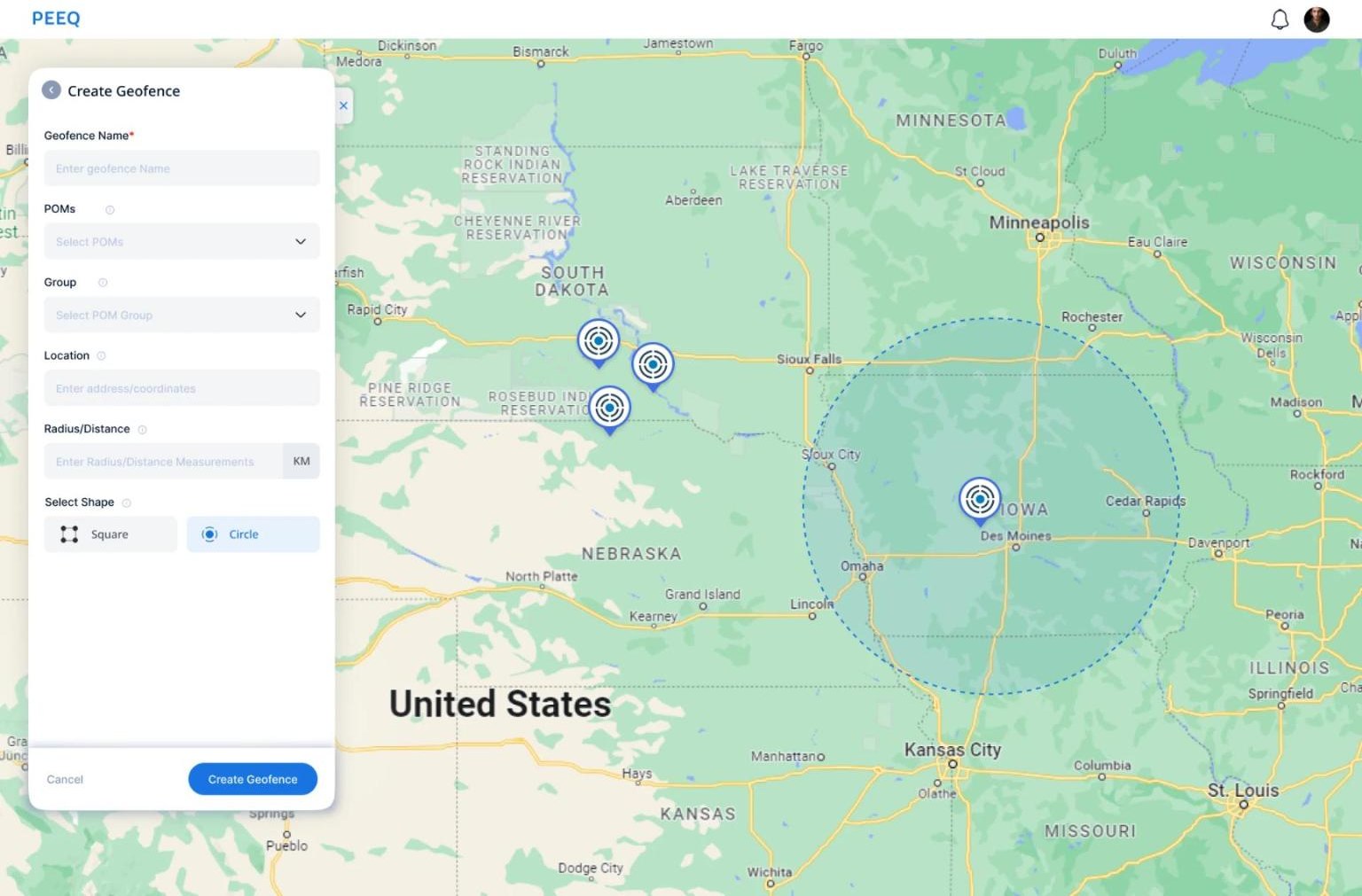
PEEQ Create Geofence panel with name, devices, group, location, radius and shape, next to a map showing the circular boundary.
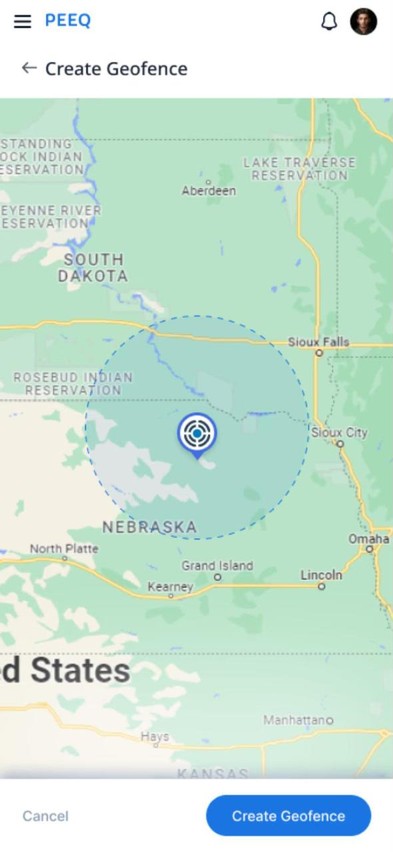
Mobile Create Geofence: the map shows the circular boundary with Cancel and Create Geofence buttons.

One panel, the map does the checking.

Location takes an address or coordinates, so experts keep their shortcut and everyone else types a place. The radius and shape draw a live boundary on the map before anything is saved. On mobile the map takes the full screen and the form gets out of the way.

BecauseThe backend needs exact coordinates, people think in places, and a wrong boundary means false alerts. Showing the boundary turns a guess into a check.

06 · Devices

From a flat list to context at a glance.

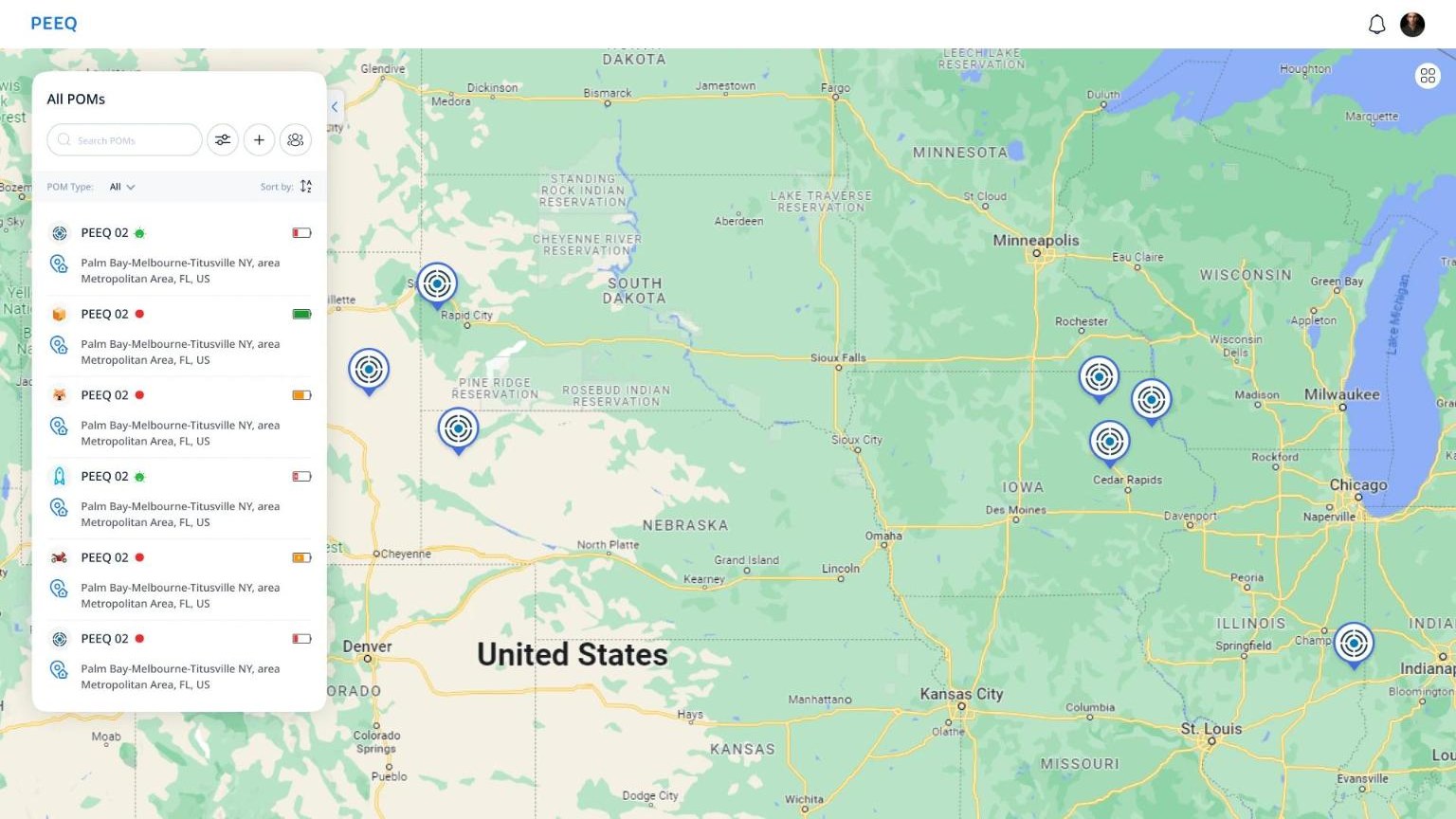
PEEQ All POMs panel listing devices with an icon, online status, battery level and address, beside the map with device pins.
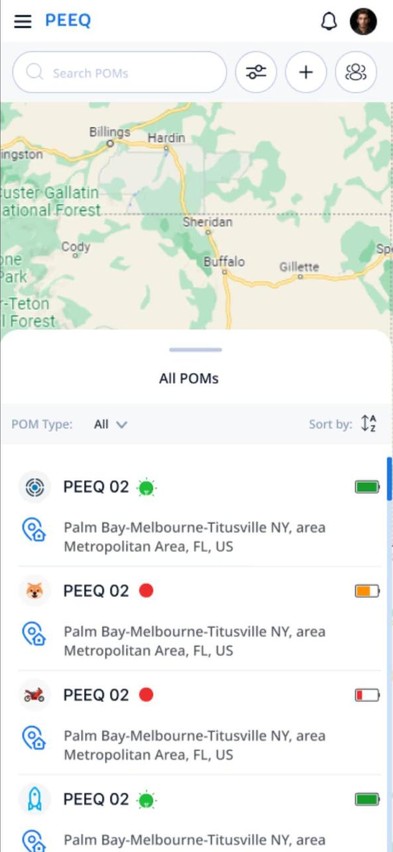
Mobile All POMs as a bottom sheet over the map, with status dots and battery levels.

Status on every row.

Each row shows a device icon, online status, battery level and last known area, so people can scan without opening anything. Search, filter by type and sort sit above the list. On mobile the list becomes a bottom sheet so the map stays visible.

BecauseIn observation, people struggled to read device status at a glance and searched for devices longer than they should have.
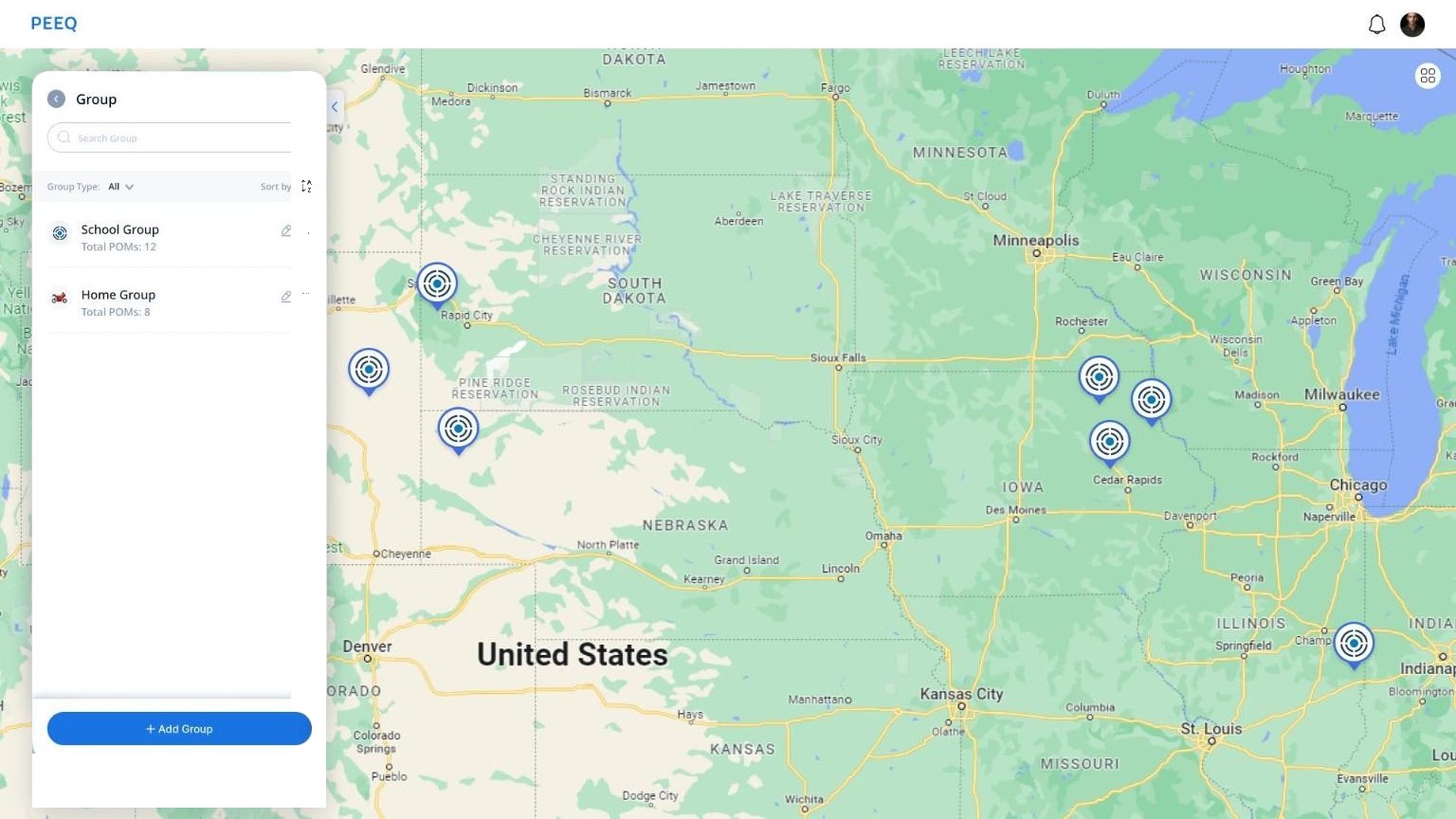
PEEQ group list showing School Group with 12 devices and Home Group with 8, with an Add Group button.
1. Group list. Each group shows how many devices it holds.
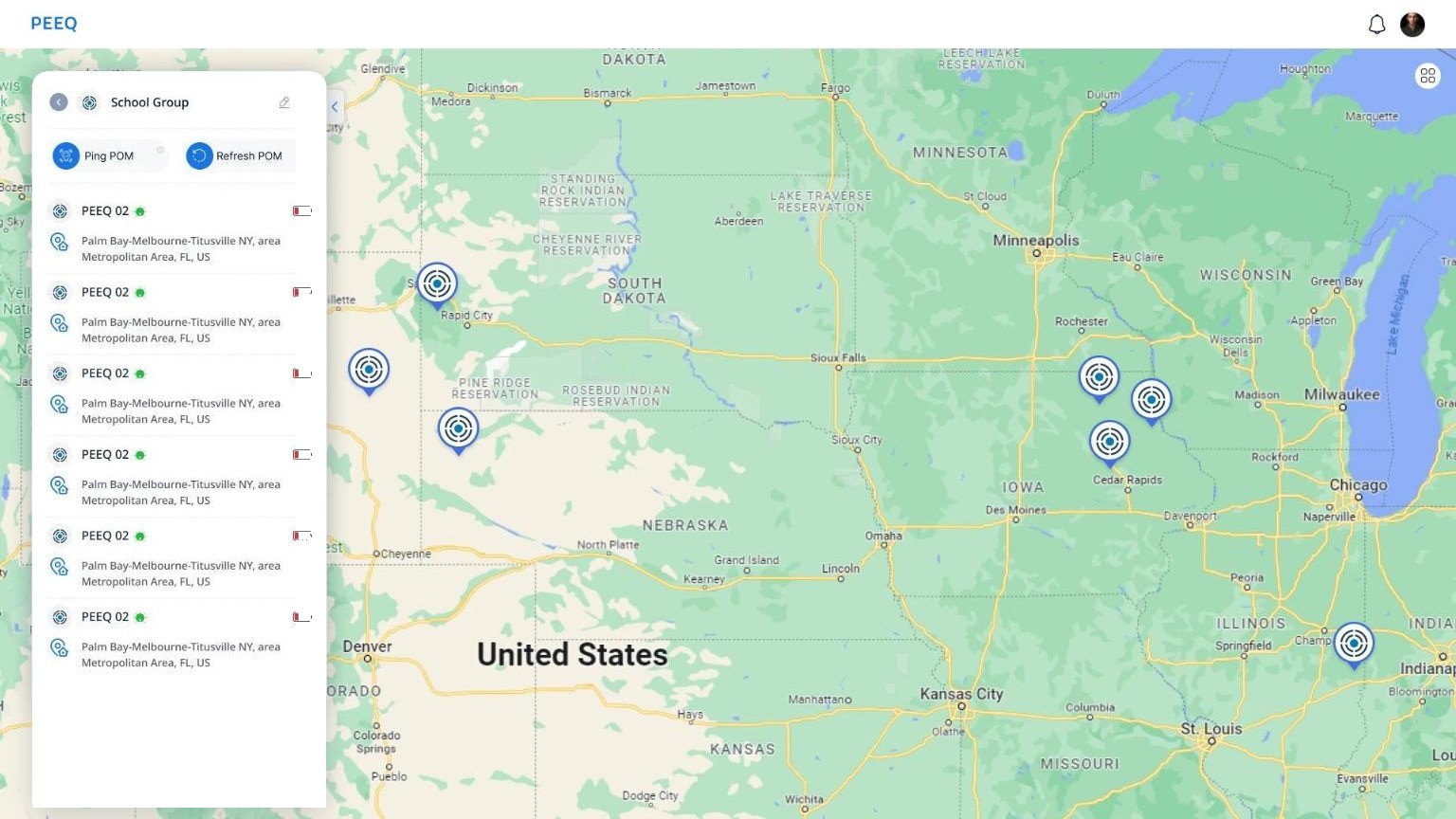
PEEQ School Group detail with Ping and Refresh actions for the whole group and its devices listed with status and battery.
2. Inside a group. Ping or refresh every device in it at once.
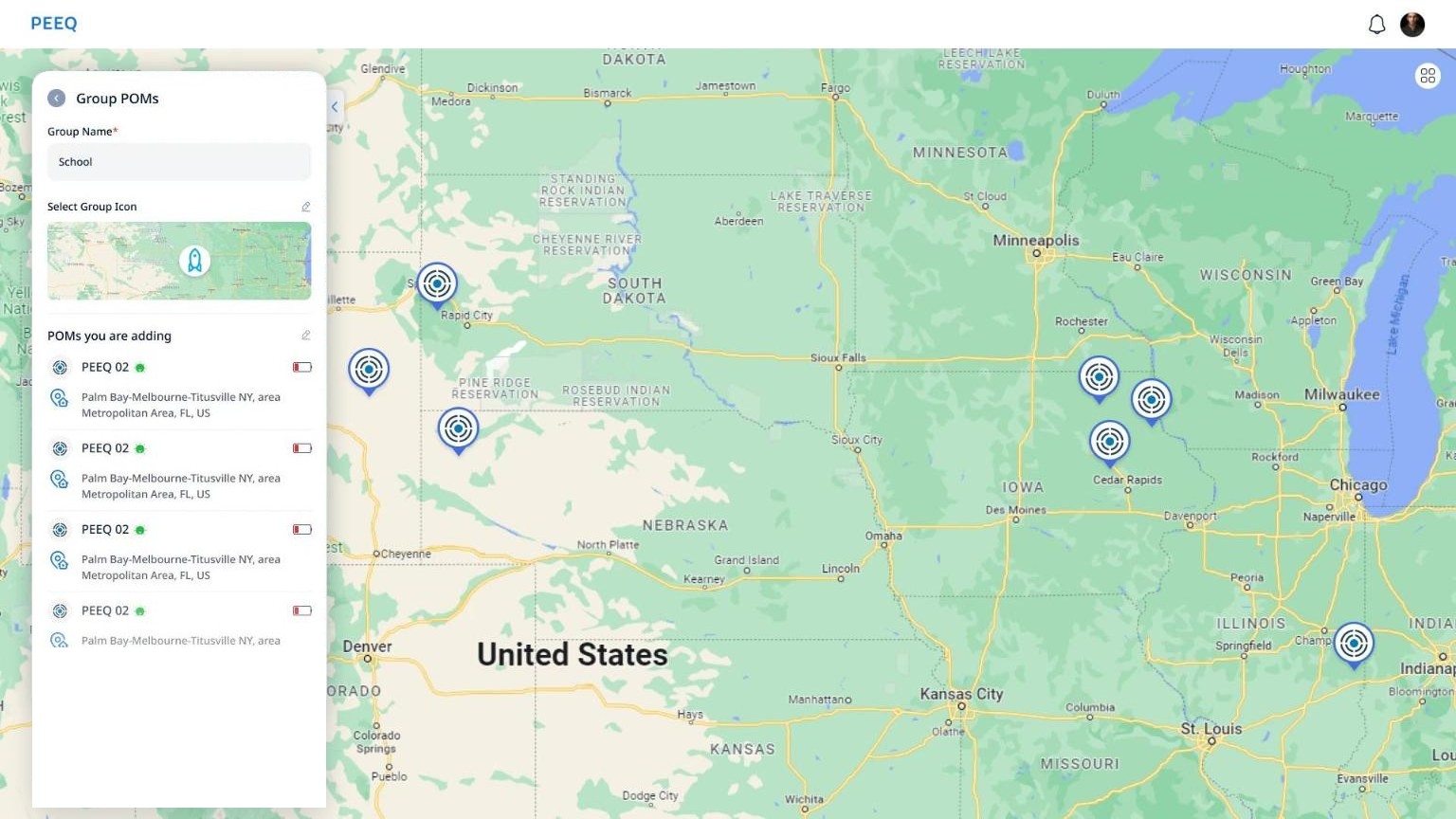
PEEQ create group panel with a group name, an icon placed on the map and the devices being added.
3. Creating a group. Name it, pick an icon, review the devices being added.

Groups people define themselves.

Teams group devices by what matters to them, like a school route or home base, and act on a whole group at once: ping, refresh or set alerts. The empty state explains what groups are for before asking anyone to make one.

BecauseKnowing which device belongs where matters as much as its status. And with 9 alert types per device, acting on a group is how setup stays manageable.
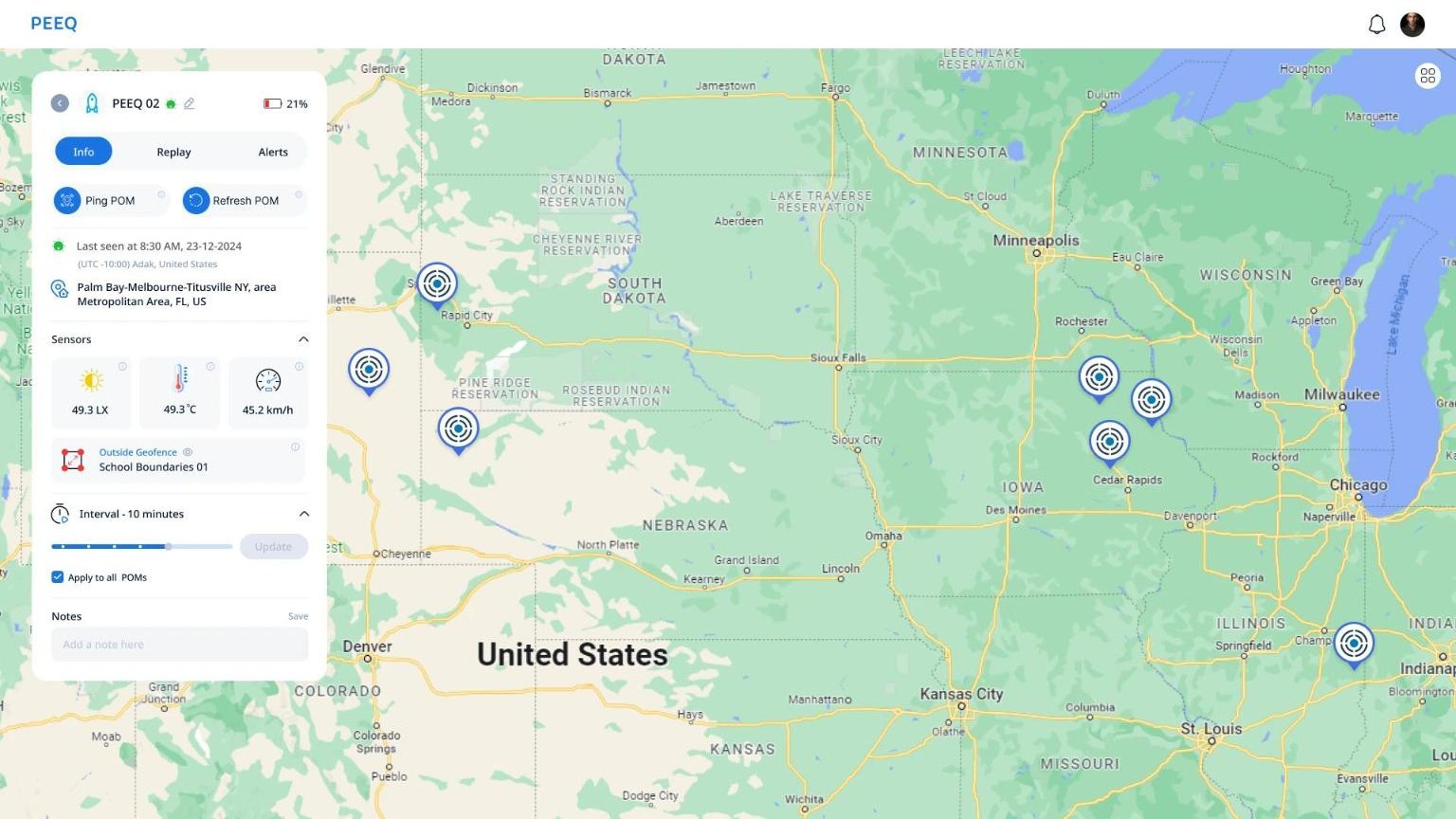
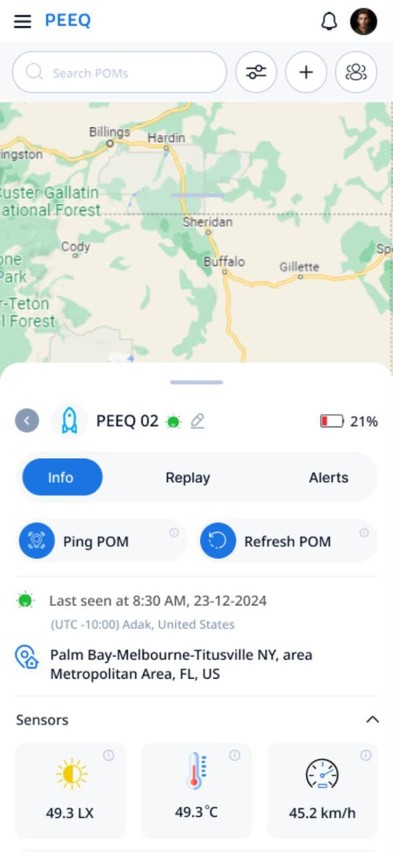
PEEQ device detail with Info, Replay and Alerts tabs, Ping and Refresh actions, last seen time, address, light, temperature and speed sensors, geofence status and update interval.
Mobile device detail as a bottom sheet with Info, Replay and Alerts tabs and sensor readings.

One device, three questions.

Info answers “where and how is it now,” Replay answers “where has it been,” Alerts answers “when should I hear about it.” Sensor readings and geofence status sit at the top, and the update interval can be applied to all devices in one tick.

BecauseTask first navigation: the most common checks stay one tap away, and secondary actions stay out of the way.
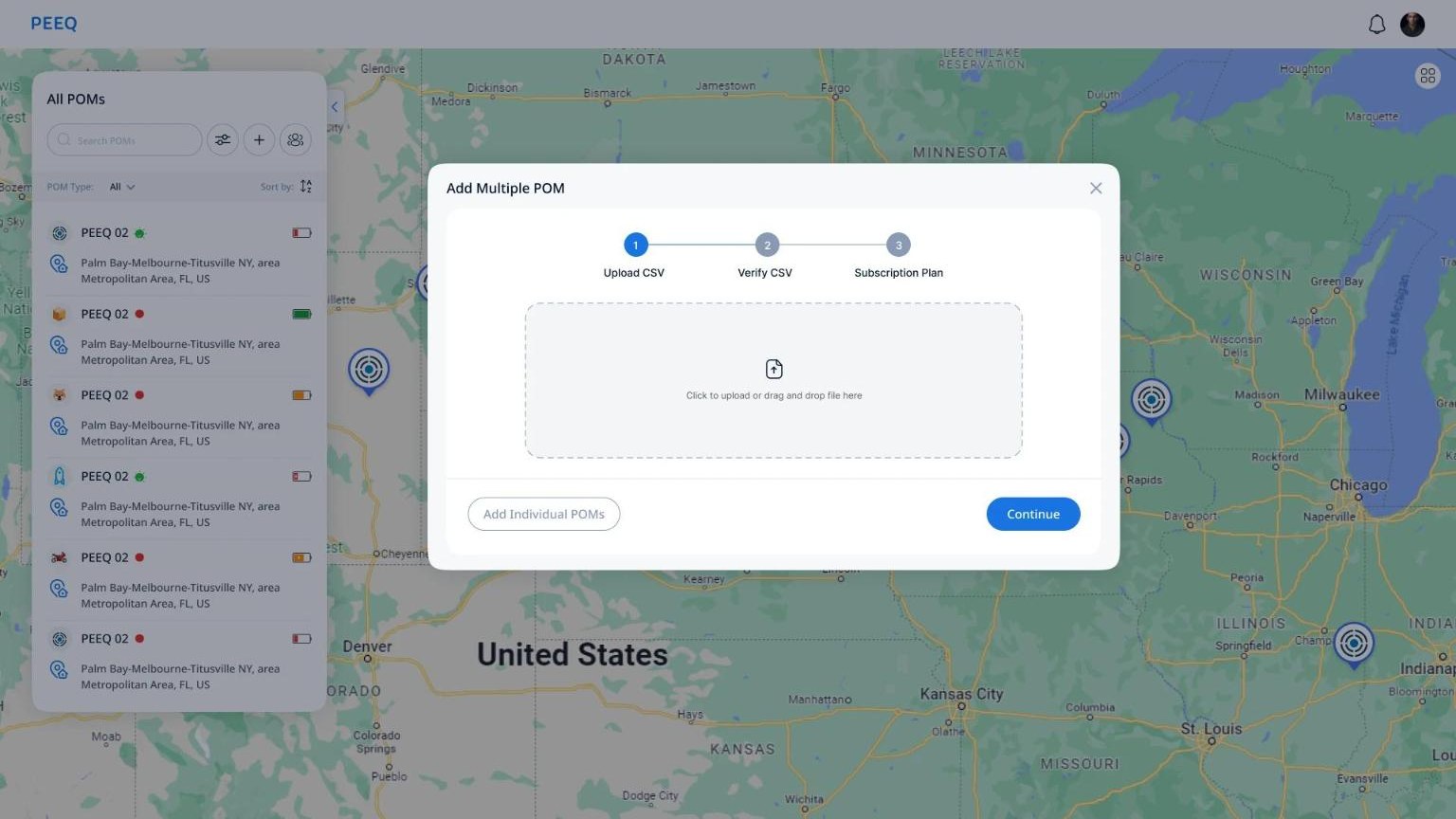
PEEQ Add Multiple POM dialog with three steps: upload CSV, verify CSV, subscription plan.

Adding devices in bulk.

A three step import, upload, verify, choose a plan, so a team can add a batch of devices from a spreadsheet instead of one by one. The individual path stays one click away.

BecauseAccounts were small but expected to grow. Designing import early avoids a list that only works for the first ten devices.

07 · Expert walkthrough

What I'd catch now that I missed then.

I reviewed the designed screens as a first time operator setting up a geofence alert, and rated each issue on Nielsen's severity scale. This is an expert review of static screens, not a usability test.

9issues found
3severity 3, major
5severity 2, minor
1severity 1, cosmetic
ScreenWhat the operator meetsWhy it mattersHeuristicSev.
Device listOnline status shown only as a green or red dotColour alone fails for colour blind users (WCAG 1.4.1); add a shape or a wordAccessibility3
Alerts9 alert types set per device; only the update interval has “apply to all”Up to 180 settings for a 20 device accountFlexibility and efficiency3
Device listRows with the same name and address in the designSample data hides the real recognition problem; test with realistic namesRecognition over recall3
GeofenceRadius typed in km rather than dragged on the mapThe map shows the boundary but can't be used to adjust itDirect manipulation2
GeofenceOnly square or circle shapesReal areas like a school campus are irregular; a polygon would fit themMatch with the real world2
Device detail“Last seen” in UTC −10:00 Adak while the device is in FloridaPeople have to convert time zones in their headMatch with the real world2
Device detail49.3 °C shown with no warning stateReadings have no thresholds, so a problem looks the same as normalVisibility of system status2
Bulk addUpload CSV with no template or format hintPeople can't know the columns until import failsError prevention2
Everywhere“POM” used for devicesA product term people must learn first; “device” would read instantlyMatch with the real world1

08 · What I'd test next

Turn the model into measurements.

QuestionTask for 5 operatorsMeasure
Is place first faster in practice?Set a 2 km geofence around a named addressTime, errors, against the 14.6 s estimate
Can people find a device fast?Find the device that went offline most recently, out of 20Time to find, wrong taps
Is status readable without colour?Same task in greyscaleSuccess rate, compared with colour
Do groups reduce setup?Turn on geofence exit alerts for every school deviceClicks with groups vs one by one

09 · Reflection

Hide the system's language, keep its precision.

What I learned

  • A backend requirement is not a UI requirement. The system needs coordinates; the person only needs to name a place and see it.
  • Small accounts still need structure. Recognition breaks long before a list gets long when rows look alike.
  • When analytics don't exist, a model and a count still make a decision arguable, as long as I label them honestly.

What I would do differently

  • Run the four tests above before handoff instead of relying on a small number of observations.
  • Design alert defaults at group level first, then let individual devices override them.
  • Use realistic device names and data in every design file from day one.